Registries
The Registries page lists container registries: the places devices pull Docker
images from, such as Docker Hub or a private company registry. When a composition
(docker-compose.yml) refers to an image in a private registry, Orchestra uses the
login details saved here to pull it.
On the Registries page you can:
see the registries of the tenant, with their names and URLs,
search for a registry by name,
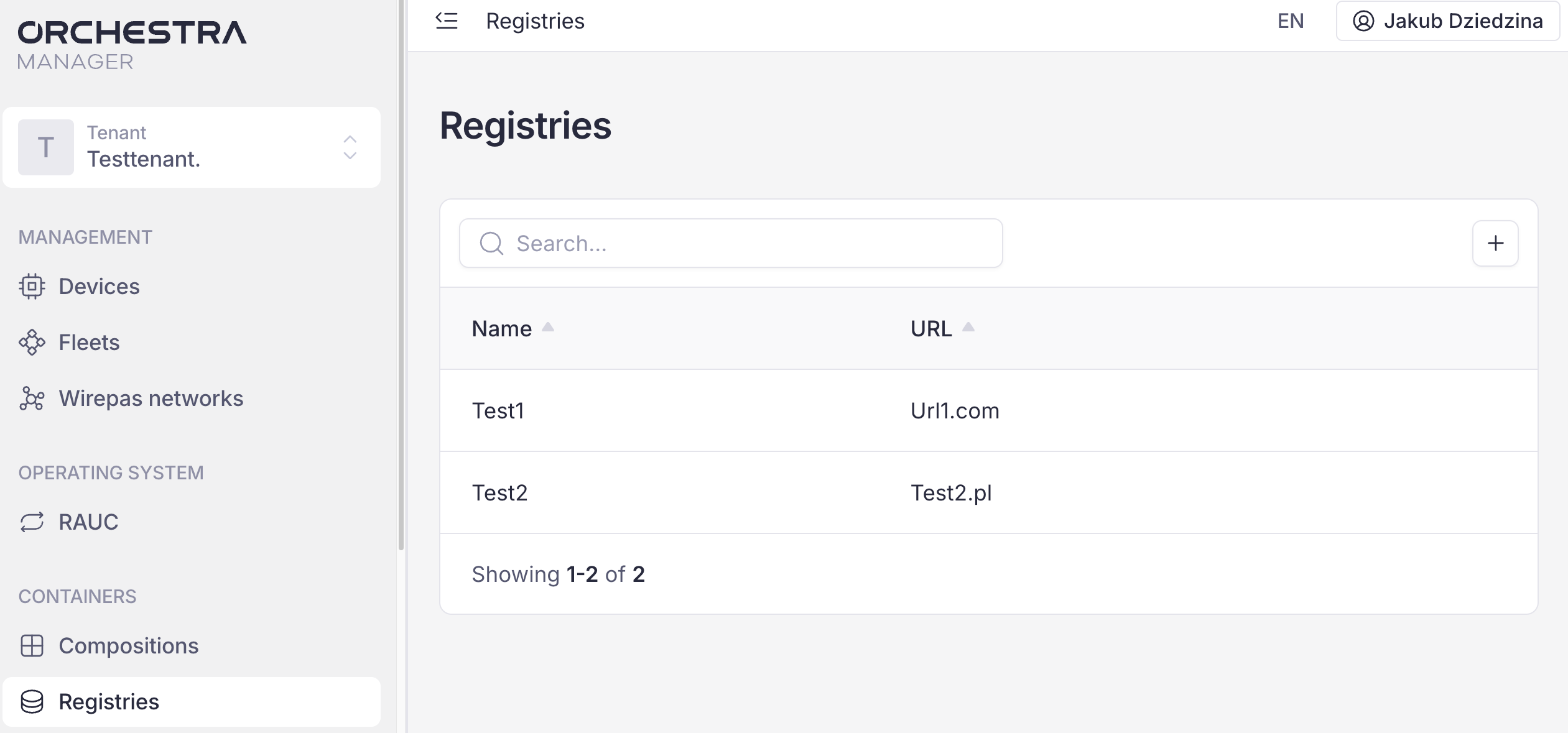
Registries page
Add a registry
Click the + button in the top right corner of the table.
In the Add a new registry window, fill in the fields:
Name: your own label for the registry, e.g. Company Docker Hub,
URL: the registry address,
Login and Password: the credentials to access the registry. Click the eye icon to show the password,
Description (optional): a note about the registry.
Click Add. To close the window without saving, click Cancel.
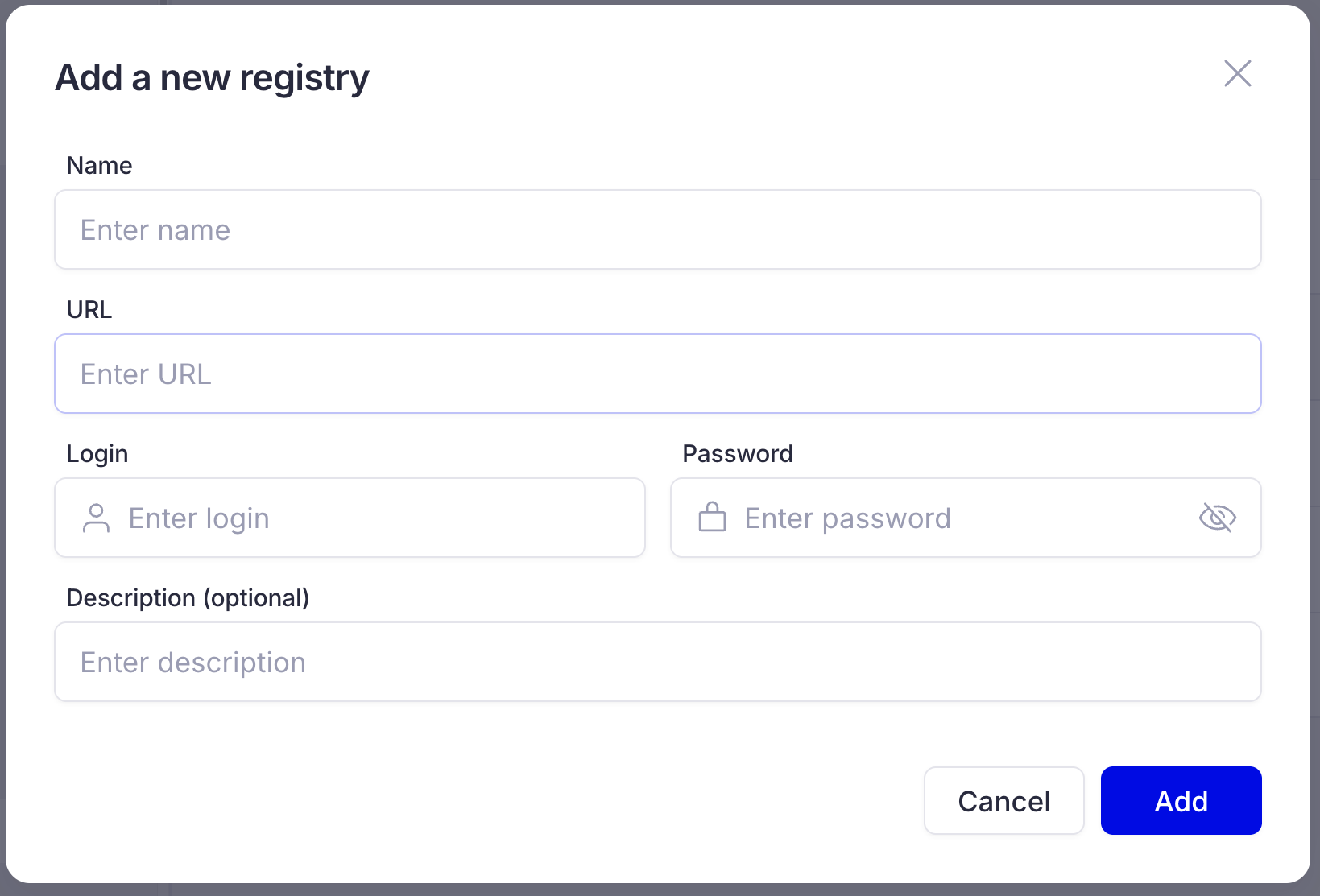
Add a new registry
Edit a registry
On the Registries page, click the registry.
In the Registry details window, change its details.
Click Save.
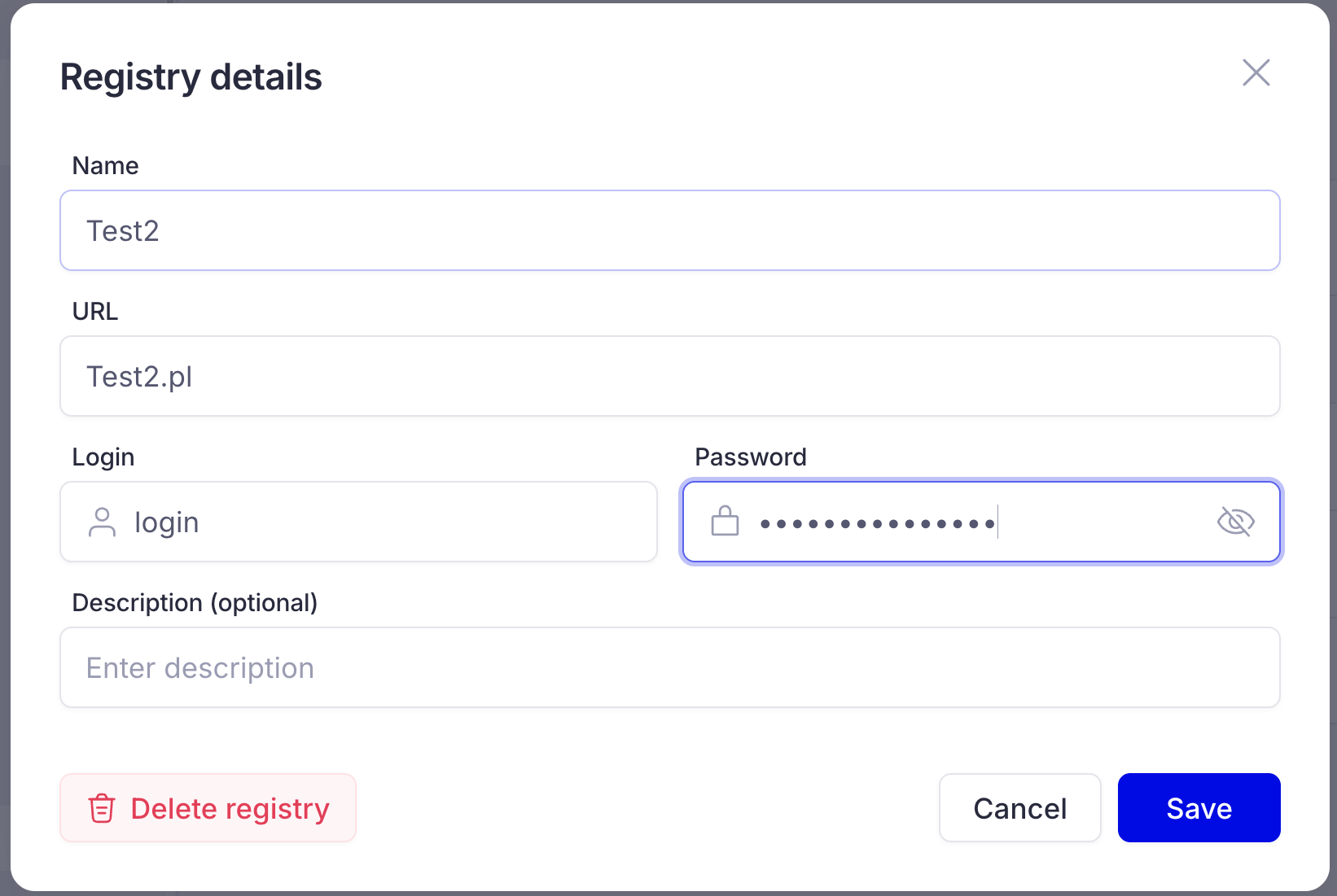
Registry details
Delete a registry
Warning
Deleting a registry revokes Orchestra’s access to it. Compositions that use the registry and are already deployed keep working, but you can’t update them.
On the Registries page, click on one of available registries.
In the Registry details window, click the red Delete registry button.
Confirm by clicking the red Delete button.
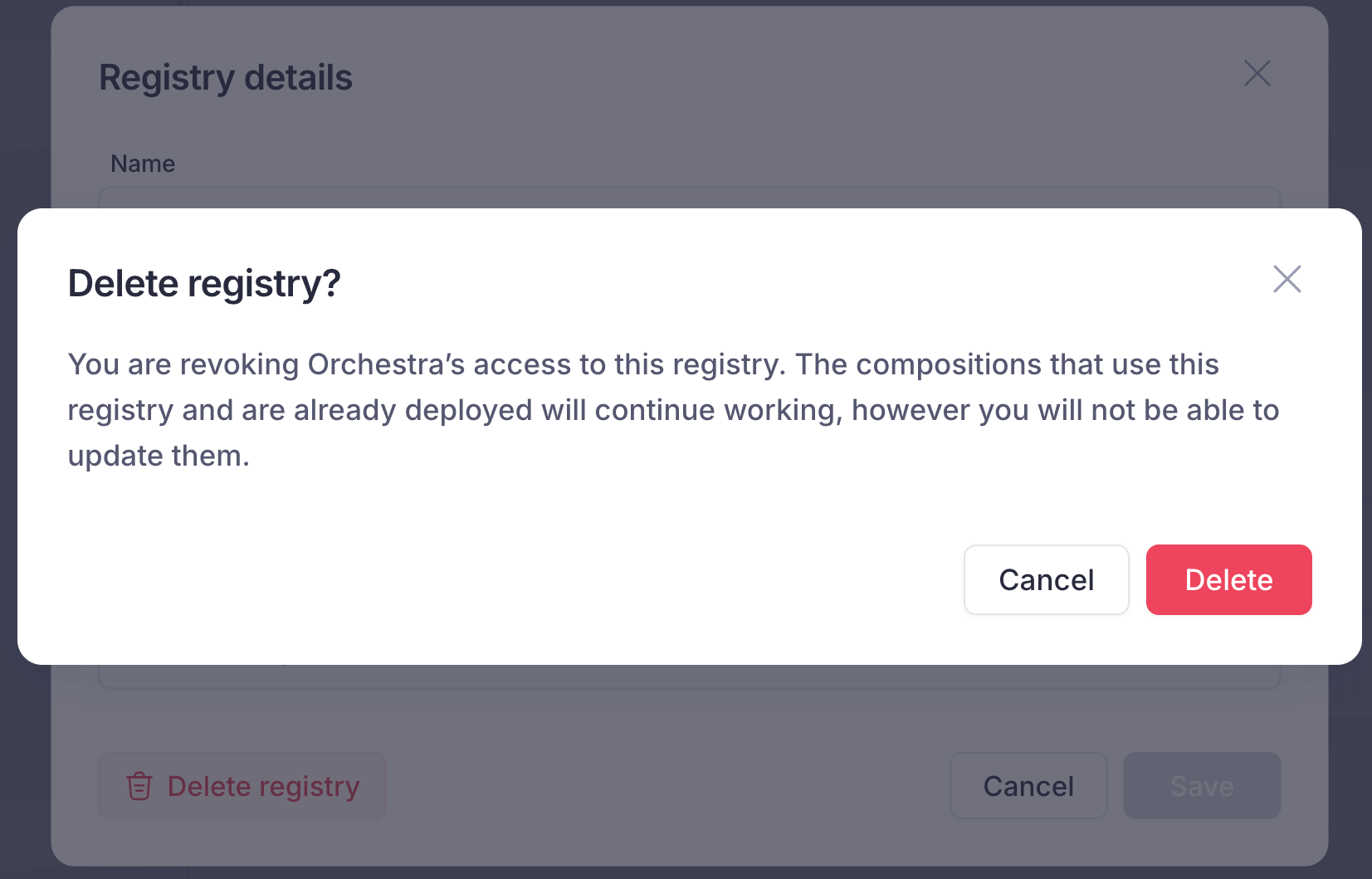
Delete registry confirmation